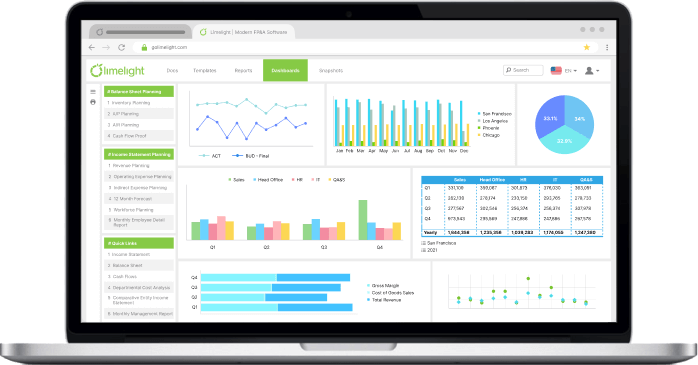
Key Takeaways
- Essential Excel functions: Key Excel functions for FP&A include financial, lookup, logical, and statistical functions, essential for effective FP&A.
- Why Excel is still dominant: According to the AFP 2025 survey, 96% of FP&A teams still use Excel daily due to its flexibility and familiarity.
- Combining functions for better results: Using multiple Excel functions together offers more strategic insights for budgeting, forecasting, and reporting.
- Efficiency gains: Excel remains the primary tool, helping FP&A teams manage complex financial data with greater efficiency.
- FP&A's ongoing need for Excel: Despite the rise of specialized tools, financial planning Excel remains key for teams aiming to improve their financial processes and make data-driven decisions.
Your finance team spends hours manually building spreadsheets: Are you utilizing the right Excel functions to improve efficiency? Financial planning in Excel is central to the work of FP&A teams, but many still rely on time-consuming, manual processes. The key to accelerating workflows and enhancing accuracy lies in mastering Excel's powerful functions.
In this guide, we’ll cover 15 essential Excel functions for financial planning, organized by category. You’ll learn the syntax, see practical examples, and understand how these functions can be applied to your day-to-day FP&A tasks, helping you work faster and make more informed decisions.
Why Excel Remains Essential for Financial Planning and Analysis
Excel continues to play a central role in FP&A, even as FP&A software adoption grows. According to the AFP 2025 FP&A Benchmarking Survey, 96% of finance professionals use spreadsheets at least weekly for planning and reporting tasks. That reliance exists for practical reasons, not habit.
FP&A teams continue to use Excel to plan, track, and adjust performance across reporting cycles as new data becomes available.
There are several reasons for Microsoft Excel’s enduring role in financial planning and analysis:
- Flexibility: Excel offers unmatched flexibility. Finance teams can quickly model balance sheets, profit and loss statements, and cash flow statements using their own assumptions and structures.
- Familiarity: Most FP&A professionals already understand Excel formulas, which shortens onboarding and reduces friction.
- Functionality: Excel is powerful. With more than 475 built-in functions, it supports everything from variance analysis to financial forecasting using real operational data.
- Accessibility: Excel is accessible. It works across teams, supports fast analysis and reporting, and integrates easily into existing workflows.
While Excel has 475+ functions, you only need to master about 20% of them to handle 80% of FP&A tasks.
The sections below focus on the 15 functions that matter most.
Essential Excel Functions Every FP&A Professional Must Know
Below are the Excel functions finance teams rely on most when working with a budget, actual performance, financial data, and forward-looking models. Each function is grouped by category and tied directly to FP&A workflows such as forecasting, reporting, and decision making.
If you need a ready-to-use starting point, download our free budget vs actual Excel template to apply these functions in a pre-built, structured format.
A comparison: 15 essential functions for financial planning
|
No.
|
Function name
|
Category
|
Syntax
|
Primary FP&A use case
|
|
1
|
XNPV
|
Financial Functions
|
=XNPV(rate, values, dates)
|
Net present value calculation with specific dates
|
|
2
|
XIRR
|
Financial Functions
|
=XIRR(values, dates, [guess])
|
Internal rate of return with specific dates
|
|
3
|
PMT
|
Financial Functions
|
=PMT(rate, nper, pv, [fv], [type])
|
Payment calculation for loans/mortgages
|
|
4
|
FV
|
Financial Functions
|
=FV(rate, nper, pmt, [pv], [type])
|
Future value calculation
|
|
5
|
PV
|
Financial Functions
|
=PV(rate, nper, pmt, [fv], [type])
|
Present value calculation
|
|
6
|
XLOOKUP
|
Lookup & Reference
|
=XLOOKUP(lookup_value, lookup_array, return_array, [if_not_found], [match_mode], [search_mode])
|
Modern lookup function with optional error handling and match modes
|
|
7
|
INDEX/MATCH
|
Lookup & Reference
|
=INDEX(array, MATCH(lookup_value, lookup_array, 0))
|
Powerful lookup combination
|
|
8
|
OFFSET
|
Lookup & Reference
|
=OFFSET(reference, rows, cols, [height], [width])
|
Dynamic range reference
|
|
9
|
SUMIFS
|
Conditional & Logical
|
=SUMIFS(sum_range, criteria_range1, criteria1, ...)
|
Sum with multiple criteria
|
|
10
|
COUNTIFS
|
Conditional & Logical
|
=COUNTIFS(range1, criteria1, ...)
|
Count with multiple criteria
|
|
11
|
IF / IFS
|
Conditional & Logical
|
=IF(logical_test, value_if_true, value_if_false)
|
Conditional logic
|
|
12
|
IFERROR
|
Conditional & Logical
|
=IFERROR(value, value_if_error)
|
Error handling
|
|
13
|
FORECAST.ETS
|
Data Analysis & Statistical
|
=FORECAST.ETS(target_date, values, timeline)
|
Forecasting future data trends
|
|
14
|
TREND
|
Data Analysis & Statistical
|
=TREND(known_y's, known_x's, new_x's, [const])
|
Linear trend calculation
|
|
15
|
NETWORKDAYS
|
Data Analysis & Statistical
|
=NETWORKDAYS(start_date, end_date, [holidays])
|
Calculate the number of working days
|
Category 1: Financial functions (Time value of money)
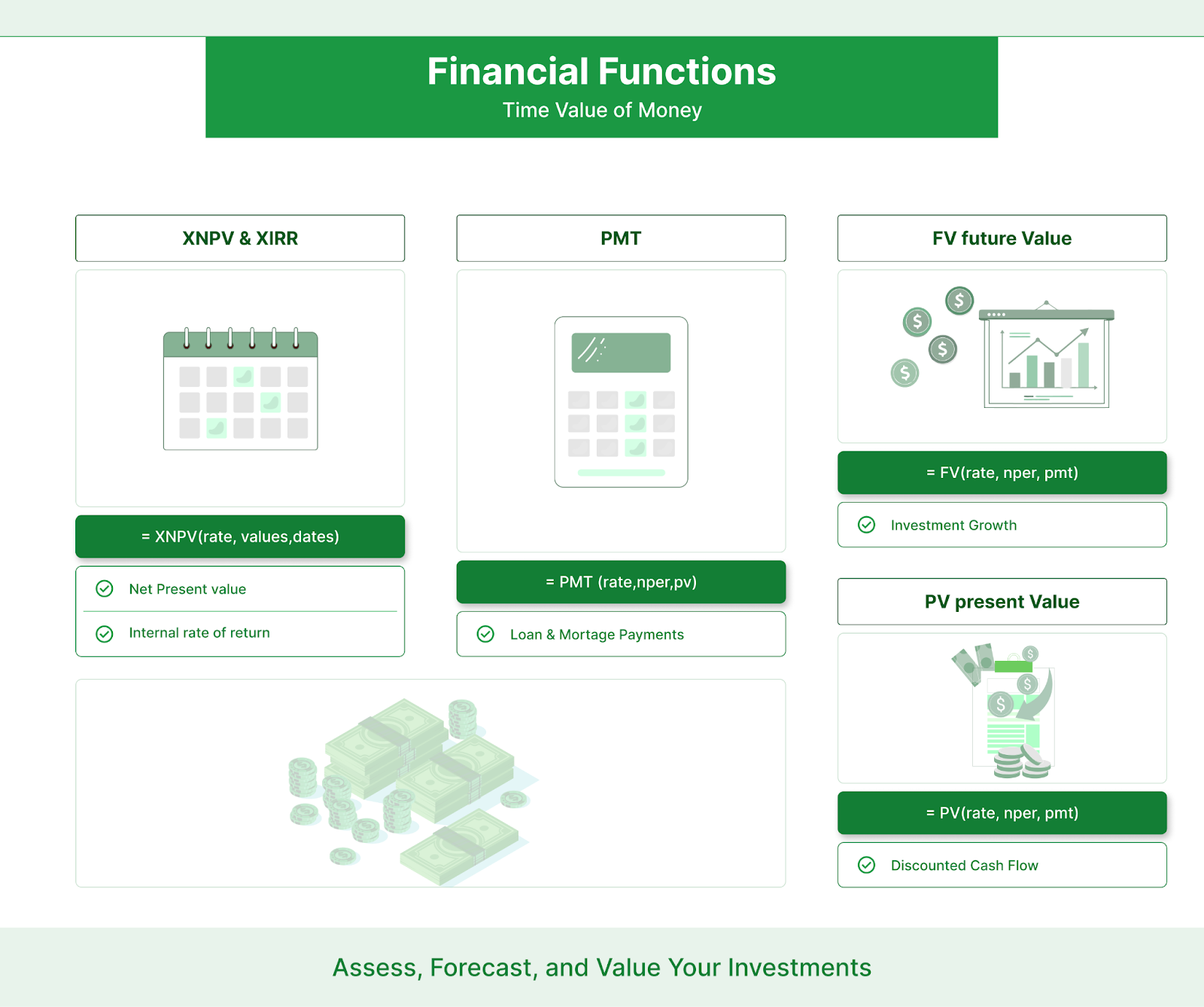
Visual showing financial functions
These financial functions form the foundation of time-value-of-money analysis, helping FP&A teams evaluate cash flows, returns, and long-term investment impact.
1. XNPV - Net Present Value with Specific Dates
- Description: The XNPV function calculates the net present value (NPV) of an investment or project, considering specific dates for cash flows.
|
Syntax:
=XNPV(rate, values, dates)
|
- What It Does: XNPV differs from the standard NPV function by allowing you to specify the exact dates for each cash flow, making it ideal for irregular intervals. It helps finance teams assess the profitability of an investment over a certain time period.
- FP&A Use Case: When evaluating capital investments or long-term projects, FP&A teams can use XNPV to calculate the present value of future cash flows, factoring in specific project timelines.
- Pro Tip: Combine XNPV with other financial functions, such as PMT or FV, to analyze how changing variables like payment schedules or interest rates affect your project's profitability.
2. XIRR - Internal Rate of Return with Specific Dates
- Description: XIRR calculates the internal rate of return (IRR) for a series of cash flows occurring at irregular intervals.
|
Syntax:
=XIRR(values, dates, [guess])
|
- What It Does: XIRR is useful when you need to determine the rate of return for investments or projects with non-uniform cash flows, making it ideal for assessing venture capital or long-term projects.
- FP&A Use Case: Used in financial modeling to assess the potential return on investment for projects with varying cash flows over time.
- Pro Tip: Use XIRR in combination with XNPV to provide a complete analysis of an investment’s value and return over time.
3. PMT - Payment Calculation for Loans/Mortgages
- Description: PMT calculates the periodic payment for a loan based on constant payments and a constant interest rate.
|
Syntax:
=PMT(rate, nper, pv, [fv], [type])
|
- What It Does: This function is crucial for calculating loan payments, including mortgage payments, car loans, or business financing.
- FP&A Use Case: Use PMT to model loan repayment schedules in financial planning, helping teams assess cash flow impacts due to debt servicing.
- Pro Tip: Combine PMT with FV (future value) to forecast how different payment amounts or loan terms will impact long-term debt repayment.
4. FV - Future Value Calculation
- Description: FV calculates the future value of an investment based on periodic, constant payments and a constant interest rate.
|
Syntax:
=FV(rate, nper, pmt, [pv], [type])
|
- What It Does: FV helps FP&A professionals assess the future value of cash flows, whether for retirement savings, business investments, or project funding.
- FP&A Use Case: For budgeting and forecasting, FV can help teams predict how much capital will accumulate over time at a given interest rate.
- Pro Tip: Combine FV with PV (present value) to model and compare the time value of money for different investment strategies.
5. PV - Present Value Calculation
- Description: PV calculates the current value of a sum of money that you will receive or pay in the future, discounted at a specified interest rate.
|
Syntax:
=PV(rate, nper, pmt, [fv], [type])
|
- What It Does: PV helps determine the amount of money you would need to invest today to achieve a specific future value, taking into account the time value of money.
- FP&A Use Case: Useful for determining how much to invest now to meet future financial goals or obligations.
- Pro Tip: Combine PV with XIRR for more accurate financial projections and making smarter decisions when dealing with complex, non-uniform cash flows.
Category 2: Lookup & Reference functions
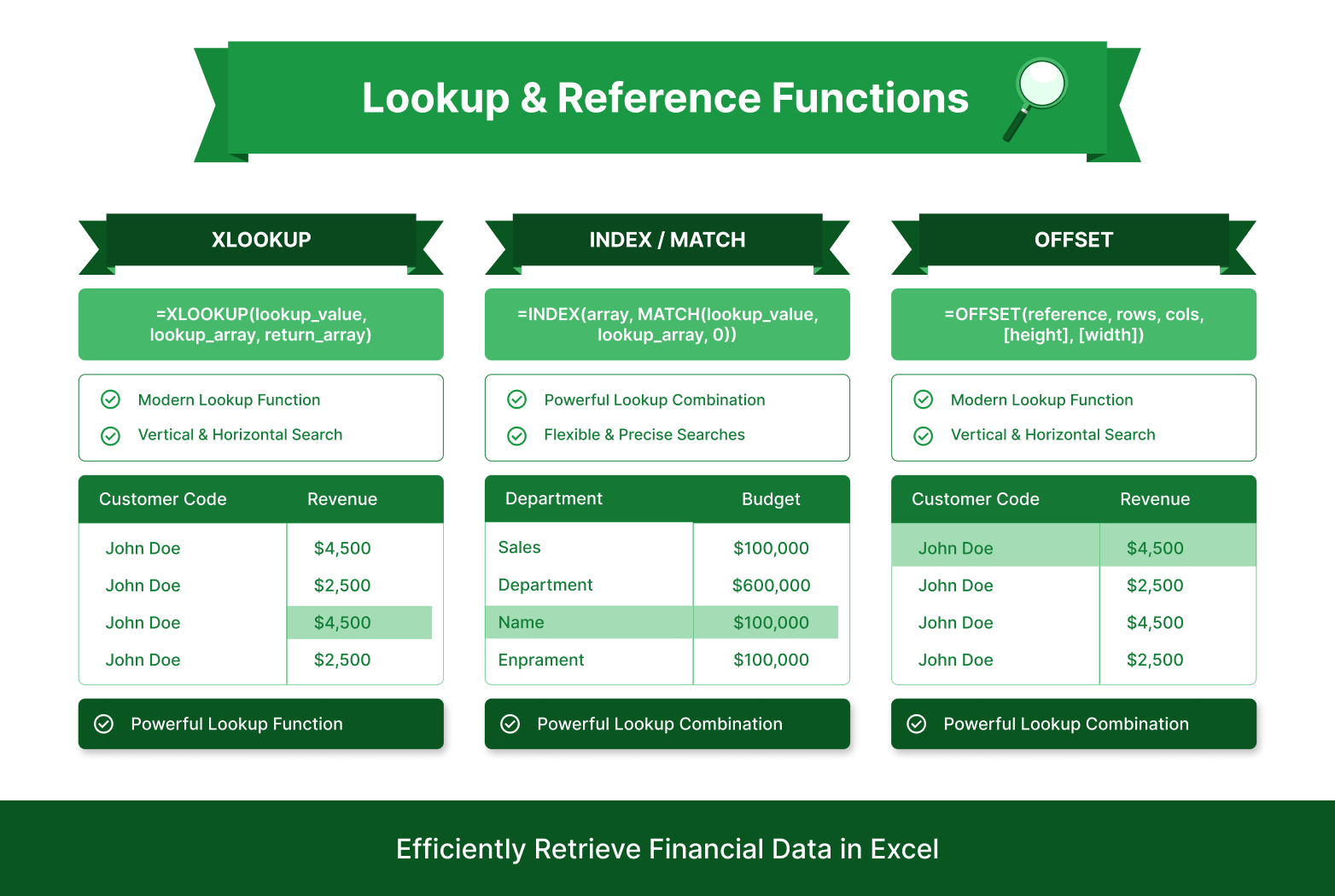
Visual showing lookup and reference functions
These functions help FP&A teams retrieve and align financial data across large spreadsheets without manual searching or rework.
1. XLOOKUP - Modern Lookup Function (Replaces VLOOKUP/HLOOKUP)
- Description: XLOOKUP is a modern replacement for VLOOKUP and HLOOKUP, offering improved functionality, such as searching both vertically and horizontally. Unlike VLOOKUP, which requires data to be organized in a specific way, XLOOKUP is more flexible and intuitive.
|
Syntax:
=XLOOKUP(lookup_value, lookup_array, return_array, [if_not_found], [match_mode], [search_mode])
|
- What It Does: XLOOKUP allows you to find a value in one column or row and return a corresponding value from another column or row. It handles errors more gracefully than VLOOKUP, automatically returning a custom message (like "Not Found") instead of an error code.
- FP&A Use Case: Use XLOOKUP to retrieve financial data from large datasets, such as matching customer data with sales projections, or retrieving expense data from multiple departments. For example, find a vendor code in a purchase ledger and automatically pull their billing address or contract terms.
- Pro Tip: XLOOKUP includes built-in error handling. You can add an [if_not_found] parameter to display a message like "Data Not Available" instead of an error, making reports cleaner and more professional.
2. INDEX/MATCH - Powerful Lookup Combination
- Description: INDEX and MATCH are two functions used together to create a more flexible lookup tool than VLOOKUP or HLOOKUP. Think of MATCH as the "finder" and INDEX as the "retriever."
|
Syntax:
=INDEX(array, MATCH(lookup_value, lookup_array, 0))
|
- What It Does: MATCH finds the position (row or column number) of a value you're searching for. INDEX then uses that position number to retrieve the corresponding value from another location. Together, they work like a coordinated team to pull data from anywhere in your spreadsheet.
- FP&A Use Case: Use INDEX/MATCH for financial models where you need to pull data dynamically based on department codes, project IDs, or cost centers. For instance, retrieve budget amounts from a master sheet by matching a department code entered in your forecast model.
- Pro Tip: INDEX/MATCH is particularly powerful because it can search from left to right (VLOOKUP can't do this). Combine it with IFERROR to display a friendly message when a lookup value doesn't exist, preventing spreadsheet errors from breaking your reports.
3. OFFSET - Dynamic Range Reference
- Description: OFFSET returns a reference to a range that is a specific number of rows and columns away from a starting point. It's useful when you need ranges that automatically adjust as your data changes.
|
Syntax:
=OFFSET(reference, rows, cols, [height], [width])
|
- What It Does: Instead of manually specifying a fixed range like A1:A12, OFFSET lets you create a range that shifts and resizes based on your data. This is especially useful for reports where the number of rows or columns varies each period.
- FP&A Use Case: Use OFFSET in rolling forecasts or period-based reports that require dynamic ranges. For example, create a formula that automatically pulls the last 12 months of expense data without manually updating the range each month.
- Pro Tip: Combine OFFSET with COUNTA (which counts non-empty cells) to automatically adjust ranges that depend on changing datasets. This ensures your reports update dynamically without manual intervention: a huge time-saver for recurring monthly or quarterly forecasts.
Category 3: Conditional & Logical functions

Visual showing conditional and logical functions
These functions apply business rules to financial data, helping FP&A teams control how values are calculated, categorized, and displayed.
1. SUMIFS - Sum with Multiple Criteria
- Description: SUMIFS adds up numbers in a range only when those numbers meet multiple specified criteria. Instead of manually identifying which rows to sum, SUMIFS does it automatically.
|
Syntax:
=SUMIFS(sum_range, criteria_range1, criteria1, criteria_range2, criteria2, ...)
|
- What It Does: It allows you to sum values that meet multiple conditions simultaneously. For example, sum only the sales from the North region AND the Q4 period, not sales from just one of those conditions.
- FP&A Use Case: Use SUMIFS for financial reporting, such as summing monthly revenues from specific departments or products. Example: Calculate total expenses for the Marketing department in 2025, or sum revenue from a specific product line in a particular region.
- Pro Tip: SUMIFS is particularly powerful for P&L analysis. Combine it with DATE functions to sum data based on date ranges (e.g., all transactions between January 1 and March 31), or use wildcards with TEXT criteria to sum by partial matches (e.g., all account codes starting with "40").
2. COUNTIFS - Count with Multiple Criteria
- Description: COUNTIFS counts how many cells meet multiple criteria across multiple ranges. Instead of manually counting rows that match your conditions, COUNTIFS counts them automatically.
|
Syntax:
=COUNTIFS(range1, criteria1, range2, criteria2, ...)
|
- What It Does: Similar to SUMIFS, COUNTIFS helps in counting items that meet certain conditions. This is useful for tracking inventory, contracts, transactions, or any scenario where you need to count based on multiple filters.
- FP&A Use Case: Count the number of contracts expiring in a specific month, how many customers are in a particular revenue bracket, or how many invoices are overdue by more than 30 days. Example: "How many customers have annual spend over $100,000 AND are located in the EU?"
- Pro Tip: Use COUNTIFS with dynamic ranges to create self-updating dashboards. For instance, combine COUNTIFS with OFFSET to count items in a changing dataset without manually adjusting your range each period. This is useful for rolling KPI tracking.
3. IF / IFS - Conditional Logic
- Description: IF evaluates a single condition and returns one value if true, and another if false. IFS handles multiple conditions without nesting, making complex logic cleaner and easier to read.
|
Syntax:
=IF(logical_test, value_if_true, value_if_false)
=IFS(condition1, value1, condition2, value2, ...)
|
- What It Does: These functions let you create decision logic in Excel sheets. IF is straightforward: "If this is true, do this; otherwise, do that." IFS is more powerful: it tests multiple conditions in sequence and returns the value for the first condition that is true.
- FP&A Use Case: Use IF to apply conditions to financial data, such as categorizing revenue growth as "positive," "neutral," or "needs attention." Use IFS to categorize customer segments by revenue tier: "If revenue > $1M, label as 'Enterprise'; if > $100K, label as 'Mid-Market'; otherwise 'SMB'."
- Pro Tip: IFS is cleaner than nested IF statements. Instead of writing =IF(A1>1000000,"Enterprise",IF(A1>100000,"Mid-Market","SMB")), use =IFS(A1>1000000,"Enterprise",A1>100000,"Mid-Market",TRUE,"SMB"). Combine IF or IFS with SUMIFS or COUNTIFS for multi-layered conditional analysis, for example, sum revenue only from "Enterprise" customers in a specific region.
4. IFERROR - Error Handling
- Description: IFERROR returns a specified value if an expression results in an error, otherwise it returns the value of the expression.
|
Syntax:
=IFERROR(value, value_if_error)
|
- What It Does: IFERROR helps prevent errors from displaying in reports or models, making them cleaner and easier to read. It ensures that even if a calculation produces an error, the spreadsheet won’t break.
- FP&A Use Case: Use IFERROR to handle missing data in financial reports or prevent errors in complex financial models where some cells may be blank. Example: If a lookup returns an error because a department code doesn't exist, display "Data Not Available" instead of #N/A.
- Pro Tip: Use IFERROR in combination with VLOOKUP or XLOOKUP to provide a default value when the lookup value is missing or incorrect.
Category 4: Data Analysis & Statistical functions
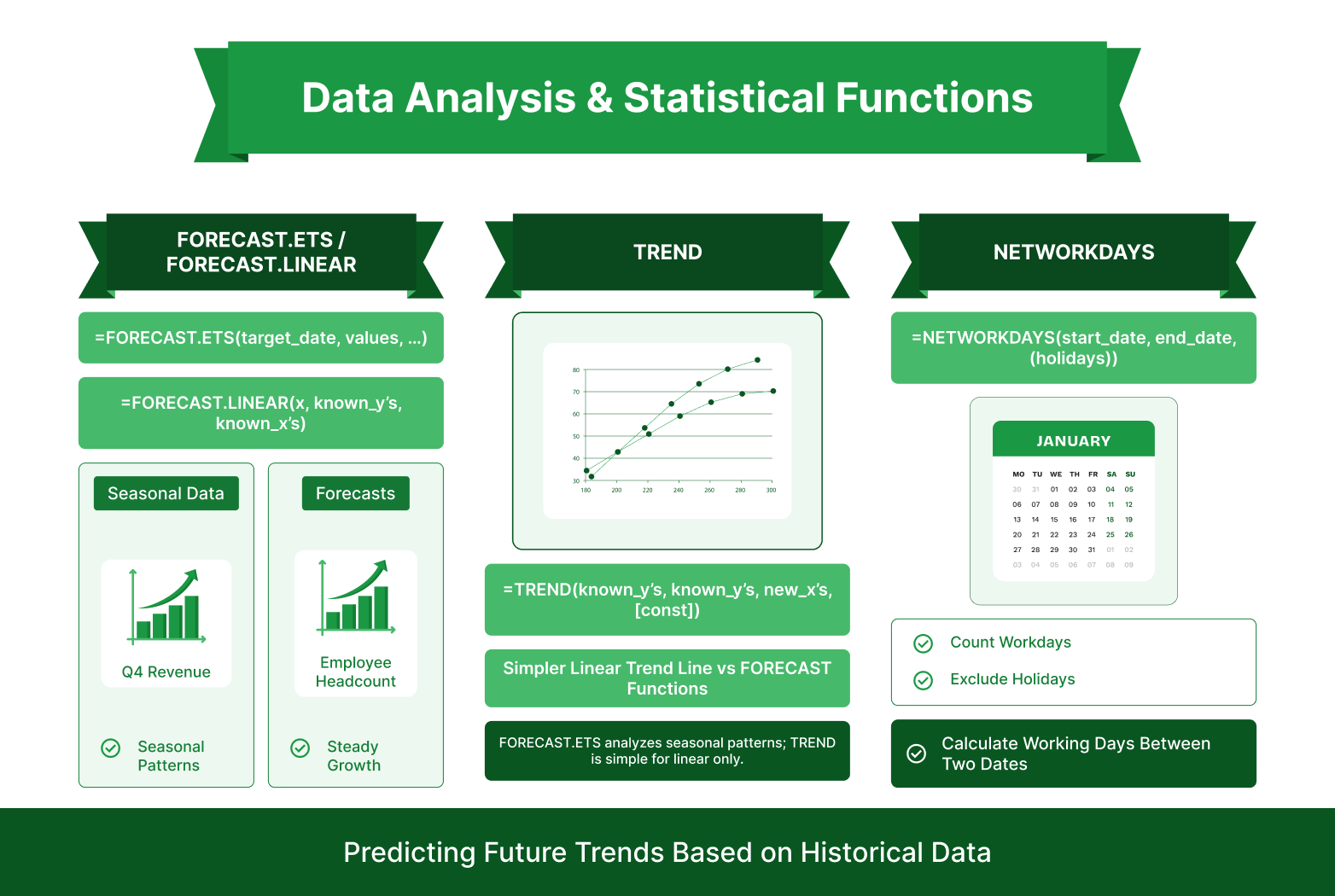
Visual showing data analysis and statistical functions
These functions are often paired with Excel’s built-in data visualization tools to present trends and forecasts clearly to stakeholders.
1. FORECAST.ETS / FORECAST.LINEAR - Forecasting Functions
- Description: These functions predict future values based on historical data. FORECAST.ETS uses an Exponential Smoothing model to capture seasonal patterns (like higher sales in Q4), while FORECAST.LINEAR uses basic linear regression for straightforward, non-seasonal projections.
|
Syntax:
=FORECAST.ETS(target_date, values, timeline)
=FORECAST.LINEAR(x, known_y's, known_x's)
|
- What It Does: Both functions analyze past data and project it forward. FORECAST.ETS is especially useful for data with repeating patterns (seasonal trends), while FORECAST.LINEAR works better for steady growth or decline without seasonal fluctuations.
When to use which:
- FORECAST.ETS: Use when your data has seasonal patterns. Example: Revenue spikes in Q4 every year, or expenses dip in summer. The function learns these patterns and builds them into predictions.
- FORECAST.LINEAR: Use for steady, predictable trends without seasonal variations. Example: Headcount grows at a consistent 5% per year, or operating costs increase linearly.
- FP&A Use Case: Use FORECAST.ETS to predict future sales or expenses with seasonal adjustments, for example, forecasting monthly revenue for the next 12 months knowing that your business peaks in Q4. Use FORECAST.LINEAR for simpler trends like predicting next year's total headcount based on consistent hiring patterns.
- Pro Tip: Important caveat: These functions assume historical patterns will continue into the future. Use them for stable, predictable trends, but be cautious during periods of significant business change (market disruptions, new product launches, major restructuring). Combine FORECAST.ETS with SUMIFS to build segmented forecasts; for example, forecast revenue separately by product line or region, then sum results for a complete picture.
2. TREND - Linear Trend Calculation
- Description: TREND calculates the linear trend line of a dataset and predicts future values based on that trend. It's simpler and more transparent than FORECAST functions. You can see exactly which data points drive the prediction.
|
Syntax:
=TREND(known_y's, known_x's, new_x's, [const])
|
- What It Does: TREND identifies the straight-line relationship between your historical data points, then uses that line to predict what new values should be. Unlike FORECAST.ETS, it doesn't attempt to account for seasonal patterns; it assumes a consistent linear direction.
- FP&A Use Case: Use TREND to assess and project financial trends with visibility into the underlying assumptions. Example: Track sales growth over the past 24 months and predict the next three months' revenue based on the calculated trend line. Or forecast headcount growth based on consistent hiring patterns.
When to use TREND vs. FORECAST functions:
- Use TREND when you want a straightforward, transparent prediction based on a simple linear relationship.
- Use FORECAST.ETS when your data has seasonal patterns or more complex behavior.
- Use FORECAST.LINEAR when you want built-in exponential smoothing without seasonal adjustment.
- Pro Tip: Use TREND to build conservative, easy-to-explain forecasts for executive presentations. Because it uses simple linear logic, stakeholders can easily understand and validate the assumptions. Combine TREND with FORECAST.ETS to cross-check your predictions: if both functions predict similar results, you have more confidence in your forecast.
3. NETWORKDAYS - Working Days Calculation
- Description: NETWORKDAYS calculates the number of business days (working days excluding weekends) between two dates. You can also exclude specific holidays.
|
Syntax:
=NETWORKDAYS(start_date, end_date, [holidays])
|
- What It Does: This function counts only weekdays (Monday–Friday), automatically excluding weekends and any holidays you specify. This is critical for accurate project timing and resource planning.
- FP&A Use Case: Use NETWORKDAYS to estimate project durations, calculate contract deadlines, or determine working day milestones. Example: A project starts January 2 and must be completed by March 31 so how many working days do you have? Or calculate how many business days remain until quarterly close. Use it in payroll calculations: multiply NETWORKDAYS by the number of employees and daily labor cost to forecast weekly/monthly payroll expenses.
- Pro Tip: Combine NETWORKDAYS with SUMIFS to calculate total working hours or project costs based on the number of working days.
|
Did You Know?
You can get started faster with a free financial Excel template from Limelight. Open this template directly in Microsoft Excel and use it right away. No setup, no special tools required.
|
Together, these 15 functions cover the majority of FP&A modeling, forecasting, and reporting needs.
How to Choose the Right Excel Functions for Your FP&A Workflow
When working with Excel for FP&A, it’s crucial to choose the right function based on your specific needs. Selecting the correct function can save you time, reduce errors, and improve the quality of your reports. Here are five key criteria to help you make the right choice:
1. Task type: Match function to the job
Choose a function that fits the specific task you are trying to perform.
- For time‑value‑of‑money analysis (e.g., calculating the net present value of an investment), use XNPV or XIRR to account for actual cash flow dates instead of assuming equal periods.
- For pulling data from large tables (e.g., matching customer IDs to revenue or cost centers), XLOOKUP is ideal because it can look left or right and is easier to maintain than VLOOKUP or HLOOKUP.
This “task-first” approach ensures you are not forcing one function to do a job it was not designed for.
2. Data structure: Consider your data layout
The way your data is laid out heavily influences which function will work best.
- If your data is organized in clear columns (e.g., Date, Department, Account, Amount), functions like SUMIFS and COUNTIFS are excellent for aggregating data by multiple criteria such as department, period, or product.
- For more flexible lookups (especially when the return column is to the left of the key, or when you want to decouple row/column positions), INDEX/MATCH or XLOOKUP often work better than VLOOKUP.
Always check whether you’re working with: column-based data vs row-based outputs or single criteria vs multiple criteria so you can pick the most appropriate function combination.
3. Performance: Beware of slow functions
Some functions can contribute to slow workbooks when used heavily in large models.
- OFFSET is a volatile function, meaning it recalculates every time Excel recalculates, which can increase calculation load in large or complex models. OFFSET itself is not “slow,” but its volatility can hurt actual performance if used thousands of times in core calculation areas.
- Functions like XLOOKUP, INDEX/MATCH, and classic VLOOKUP are generally performant, but speed can vary by dataset size and configuration; there is no universal “fastest” function for all scenarios.
For FP&A models with large data sets or many users, use volatile functions sparingly and test calculation speed as your model grows.
4. Compatibility: Check function availability
Before standardizing on a function, make sure everyone using the workbook has access to it.
- XLOOKUP is available in Excel for Microsoft 365, Excel 2021, Excel 2024, and Excel for the web, but it is not available in Excel 2019 or earlier perpetual versions.
- If your stakeholders use older versions of Excel, you may need to rely on INDEX/MATCH, VLOOKUP, or HLOOKUP instead to avoid #NAME? errors.
Align on a minimum Excel version across the team (or have a fallback version of key formulas) before building critical FP&A models.
5. Combination potential: Plan for function nesting
Many of the most powerful Excel solutions come from combining functions rather than using them in isolation.
- Nest SUMIFS inside IF (or use SUMIFS with carefully designed criteria) to aggregate values only when certain business rules are met.
- Combine INDEX and MATCH (or XLOOKUP) for advanced lookups, and wrap them with IFERROR to handle missing or invalid values cleanly in executive-facing reports.
When designing models, think in terms of function building blocks: how lookup, conditional, and aggregation functions can work together to automate repetitive tasks and reduce manual intervention.
Excel vs. FP&A Software: When Spreadsheets Aren’t Enough
As powerful and familiar as Excel is, there are clear limits to what it can reliably handle, especially for mid‑to‑large finance teams. Excel remains essential for many FP&A tasks, but as workflows grow in scale and complexity, dedicated FP&A software can provide crucial advantages such as centralized data, stronger governance, and better collaboration.
Quick comparison
|
Aspect
|
Excel/Manual
|
FP&A Software
|
|
Version control
|
Manual file copies; frequent confusion over “latest” version
|
Centralized versioning with audit trails and role‑based access
|
|
Data consolidation
|
Manual exports, imports, and copy‑paste from multiple systems
|
Automated integrations pulling data from ERP, CRM, HR, and other systems
|
|
Multi‑user collaboration
|
Prone to conflicts when multiple users edit; email attachments and shared drives
|
Real‑time multi‑user access with permissions, comments, and workflow controls
|
|
Error rate
|
High risk of formula and manual errors, especially in complex models
|
Reduced error rates through standardized models, controls, and validations
|
Error rate note: Research shows that 94% of spreadsheets contain errors in formulas or data, often due to manual entry or logic flaws.
Signs you’ve outgrown Excel
Consider introducing dedicated FP&A software when:
- You’re consolidating five or more data sources (ERP, CRM, HR, data warehouse, billing, etc.) each period, and manual consolidation is slowing close and forecast cycles.
- 15+ people need regular access or edits to plans, budgets, or forecasts, creating dependency on shared drives, email attachments, or clashing file versions.
- You are struggling with version control, repeated reconciliations, or frequent “which file is final?” confusion during budget and forecast cycles.
FP&A software helps address these challenges by centralizing data, automating routine tasks, and supporting structured collaboration without conflicting file versions. When accuracy, scalability, governance, and team productivity matter, dedicated FP&A tools often become a better fit than Excel sheets alone.
Moving Beyond Excel: How Limelight Adds Enterprise Power to Your FP&A Workflow
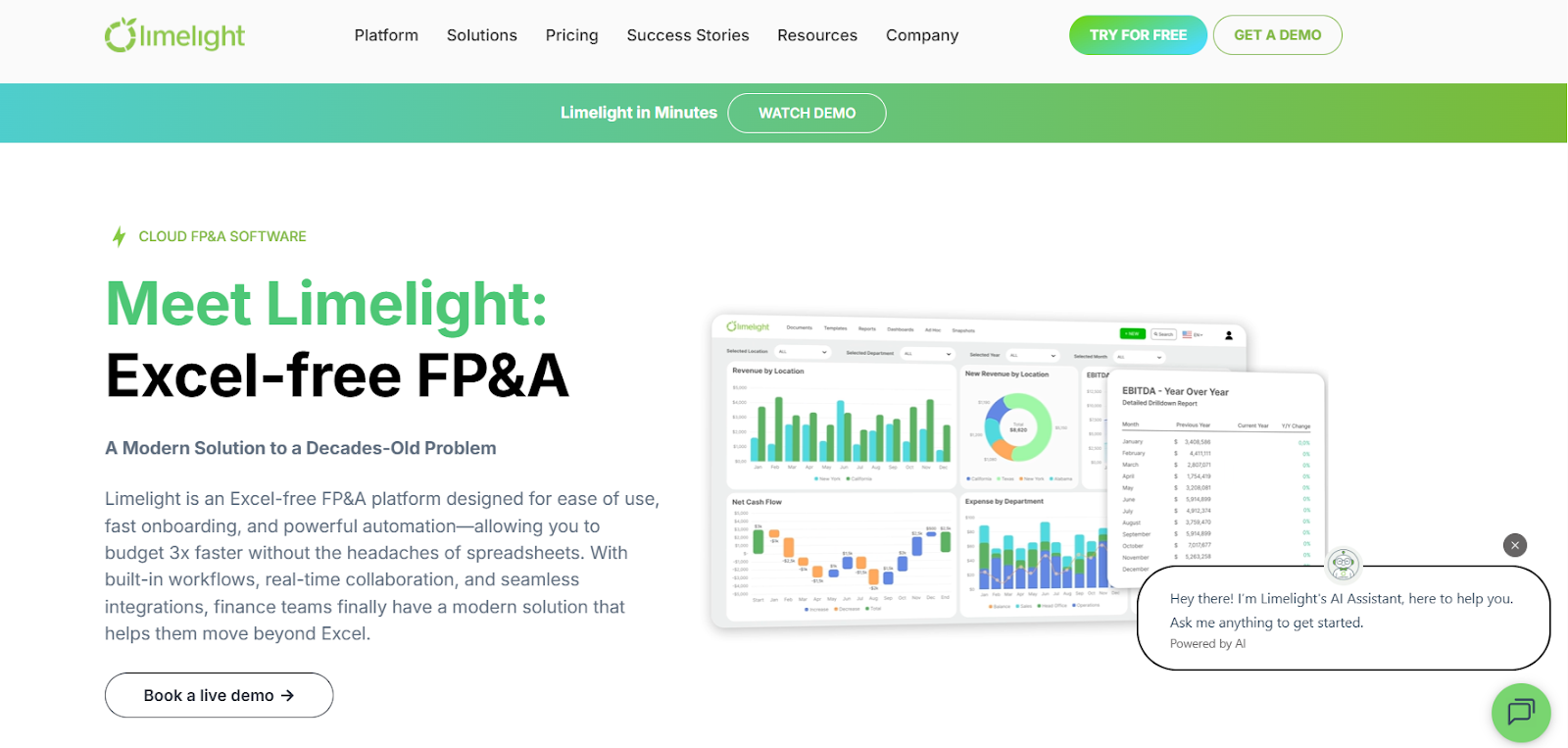
Limelight, Excel-free FP&A software homepage
Limelight bridges the gap between Excel's flexibility and familiarity, which FP&A teams know well, and the scalability and governance that enterprise FP&A software provides. With an Excel-like interface, your team can navigate familiar formulas, pivot tables, and formatting without a steep learning curve, making adoption straightforward for teams already accustomed to Excel's functions and workflows.
Unlike traditional spreadsheets relying on complex nested formulas and macros, Limelight's no-code platform lets your team build sophisticated financial models without advanced coding skills. It also includes pre-built financial templates (rolling forecasts, scenario models, cash flow projections) that accelerate model build time and reduce the risk of formula errors, letting your team focus on analysis rather than spreadsheet construction.
Stay organized with Limelight because it streamlines data management through automated consolidation. Instead of manually pulling data from your ERP, CRM, or HR system via VLOOKUP or copy-paste, Limelight automatically integrates these sources, ensuring real-time accuracy and reducing human error in the consolidation phase.
The platform includes built-in AI capabilities to accelerate analysis: AI Insights provide automated variance explanations, the AI Assistant allows natural language queries for quick data exploration, and the AI Forecaster generates intelligent predictions to support forecasting and planning activities.
Limelight also offers unlimited user pricing, meaning your entire finance team can collaborate without per-seat constraints, removing the collaboration friction common in Excel-heavy environments. Organizations using Limelight report significant improvements in planning efficiency, freeing your team to focus on strategic analysis rather than manual data wrangling.
Want to see how Limelight compares to Excel for your team?
Request a demo.
Frequently Asked Questions
1. What Excel functions are most important for FP&A?
The most important Excel functions for FP&A include XNPV and XIRR for net present value and internal rate of return calculations, PMT for loan payments, and SUMIFS for conditional summing. Other essential functions are INDEX/MATCH for lookups, IF and IFERROR for conditional logic, and FORECAST.ETS for accurate data forecasting. Mastering these functions can improve your financial analysis, reporting, and decision-making processes.
2. Should I use XLOOKUP or VLOOKUP for financial analysis?
XLOOKUP is recommended over VLOOKUP for financial analysis due to its flexibility and efficiency. Unlike VLOOKUP, which can only search vertically, XLOOKUP can search both vertically and horizontally. Additionally, XLOOKUP allows you to return exact matches without needing to specify column indexes, simplifying complex financial models. It’s also faster and handles errors more effectively, making it ideal for FP&A.
3. What's the difference between NPV and XNPV?
The main difference between NPV and XNPV is that XNPV accounts for specific dates of cash flows, whereas NPV assumes that cash flows occur at regular intervals. XNPV provides a more accurate calculation when cash flows are irregular, making it the better choice for projects or investments with variable timelines. NPV is suitable for various scenarios with fixed, periodic cash flows, like typical loan or investment scenarios.
4. How can I improve Excel performance for large financial models?
To improve Excel performance for large financial models, avoid using volatile functions like OFFSET or INDIRECT, which recalculate every time the model changes. Use XLOOKUP or INDEX/MATCH instead of VLOOKUP for faster lookups. Minimize the use of complex array formulas and reduce the number of links to external data. Regularly clear unused cells, and consider using Power Query for data transformations to handle large data sets more efficiently.
5. Can I use Excel for financial forecasting?
Yes, Excel is a capable tool for financial forecasting, especially with built-in statistical functions. FORECAST.ETS helps model seasonal trends (like Q4 revenue spikes), while TREND handles straightforward linear projections based on historical growth patterns. You can use Excel to model future financial scenarios, predict sales, and analyze cash flow, all core FP&A tasks.


%20(1).svg)